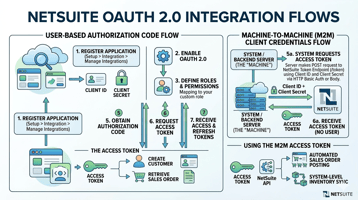
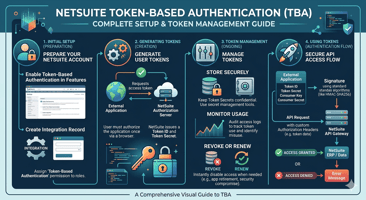
Learn how to configure Token-Based Authentication (TBA) on your NetSuite integration record, create...
Learn how to create a NetSuite Integration Record, the essential first step before setting up Token-Based Authentication (TBA) or OAuth 2.0. This guide covers the common setup steps. For authentication-specific configuration, see our TBA Guide and OAuth 2.0 Guide.
What Is an Integration Record?
Before any external application can talk to your NetSuite account — whether through REST web services, SOAP, RESTlets, or SuiteAnalytics Connect — it needs an Integration Record.
Think of it as the identity card for your application inside NetSuite. The integration record defines which authentication methods the application can use and generates the credentials (Consumer Key/Secret or Client ID/Secret) your application needs to connect.
You should create a separate integration record for each application that connects to your NetSuite account.
Prerequisites
- Permission: Administrator role or a role with the Integration Application permission
- Decision: Know which authentication method your application requires (TBA or OAuth 2.0)
TBA vs. OAuth 2.0 — Which Should You Choose?
NetSuite supports two primary authentication methods. Here's a quick comparison:
| Token-Based Auth (TBA) | OAuth 2.0 | |
|---|---|---|
| Best For | Server-to-server integrations, quick setup | New integrations, distributed apps, user-interactive flows |
| Credentials | Consumer Key/Secret + Token ID/Secret (4 values) | Client ID/Secret + authorization flow (2 values + tokens) |
| Token Expiry | Tokens never expire (revoke manually) | Access tokens expire; refresh tokens rotate |
| Grant Types | UI token creation, Authorization Flow, IssueToken | Authorization Code Grant, Client Credentials (M2M) |
| Future Support | No new TBA integrations after 2027.1 | Recommended for all new integrations |
| Scopes | N/A | RESTlets, REST Web Services, SuiteAnalytics Connect and NetSuite AI Connector Service |
⚠️ Warning: As of NetSuite 2027.1, no new integrations using TBA can be created for SOAP web services, REST web services, and RESTlets. Existing TBA integrations continue working. Use OAuth 2.0 for all new integrations.
Creating the Integration Record (Common Steps)
Regardless of whether you choose TBA or OAuth 2.0, the first few steps are identical.
📍 Navigation: Setup > Integration > Manage Integrations > New
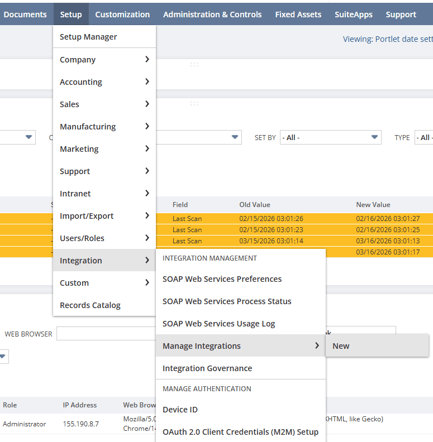
Step 1: Open the Integration Form
- Go to
Setup > Integration > Manage Integrations > New
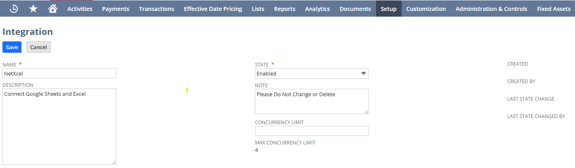
Step 2: Fill In Basic Details
- Enter the Name for your application (e.g., "NetXcel Production" or "Warehouse Sync")
- Add a Description (optional but recommended for documentation)
- The State defaults to Enabled — leave this as-is
- Add a Note if needed (optional)
Step 3: Configure Authentication
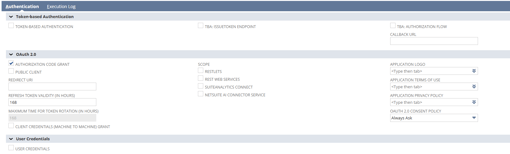
- Click the Authentication subtab
- This is where TBA and OAuth 2.0 paths diverge — see the detailed guides linked below
Step 4: Save and Capture Credentials
- Click Save
- The confirmation page displays your credentials (Consumer Key/Secret for TBA, or Client ID/Secret for OAuth 2.0)
- Copy and store these immediately in a secure location
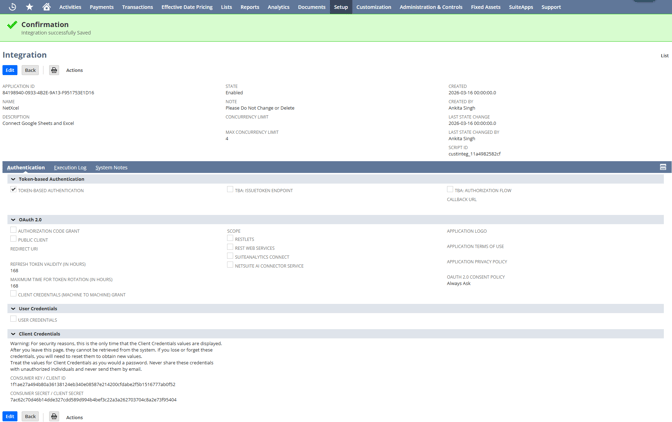
⚠️ Warning: Credentials are displayed ONLY ONCE when you first save the record. If you navigate away without copying them, you'll have to reset the credentials, which invalidates the previous values. Treat them like passwords.
Viewing Your Integration Records
To see a list of all integration records in your account:
📍 Navigation: Setup > Integration > Manage Integrations

Next Steps — Detailed Guides
Now that you understand how integration records work, dive into the detailed setup guide for your chosen authentication method:
🔗 Token-Based Authentication (TBA): Complete Setup & Token Management Guide
Step-by-step walkthrough of configuring TBA authentication options, creating access tokens, assigning tokens to users, and managing the token lifecycle.
🔗 OAuth 2.0: Complete Setup Guide for NetSuite Integrations
Detailed walkthrough of configuring OAuth 2.0 including Authorization Code Grant, Client Credentials, redirect URIs, public clients, scopes, and consent policies.
Need help connecting NetSuite to your spreadsheets?
NetXcel connects NetSuite, HubSpot, and more directly to Excel and Google Sheets.