
Fixed assets are often the largest line on a company's balance sheet, yet many NetSuite customers...
Every month it is the same routine. You have a bank reconciliation to post: the fees and interest that hit the bank statement but never made it into the general ledger. To get it into NetSuite, you build a CSV in exactly the right format, map the columns, run the CSV import, fix the errors, and reimport. Then you do it all again next month, always at month end, the highest pressure time in the whole cycle.
It does not have to work that way. You do not have to give up Excel, and you do not have to risk your close on manual keying. This guide walks through a real five-line journal entry posted straight from Excel to NetSuite with NetXcel, the spreadsheet connector built by Maayins, and shows how it compares with the CSV import you use today.
In this guide:
Key Takeaways: NetSuite Journal Entries from Excel
- The CSV import works, but it adds formatting, column mapping and reimport cycles to every month-end entry.
- With NetXcel you enter journal entry lines directly in Excel, with account, department, class and location picklists pulled live from NetSuite.
- No internal IDs to memorize: type 6330 and it resolves to the full Bank Service Charges account.
- NetXcel validates that debits equal credits before posting, then returns the NetSuite internal ID and a Success status to the sheet.
- The same sheet pulls NetSuite data back in, so you can post and report from one place.
Watch the Walkthrough
See the full entry go from an empty sheet to a posted NetSuite journal entry:
Why Is the CSV Import So Painful?
The NetSuite CSV import is a reliable tool for large, one-time data loads. For a recurring month-end journal entry, it adds steps that have nothing to do with accounting:
- Exact formatting. Dates, amounts and account references must match what NetSuite expects, or the row fails.
- Column mapping. Every file needs its columns mapped to journal entry fields, either from scratch or from a saved import map that breaks when the layout changes.
- Exact names or IDs. Accounts, departments, classes and locations must match NetSuite exactly. A typo means an error row.
- Error and reimport loops. You download the error file, fix the source, rebuild the CSV and run the import again, often more than once.
Here is how the two approaches compare for a typical recurring entry:
| Step | CSV import | NetXcel in Excel |
|---|---|---|
| Prepare the data | Build a CSV in the exact required format | Type lines directly into the sheet |
| Accounts and segments | Match names or internal IDs exactly | Pick from live NetSuite picklists |
| Field mapping | Map columns in the Import Assistant | Template columns are already mapped |
| Balance check | Found when the import fails | Validated before posting |
| Result | Check the import job status and error file | Internal ID and status written back to the sheet |
| Next month | Repeat the whole process | Reuse the same sheet |
A Real Example: A Five-Line Bank Reconciliation
Here is the kind of entry finance teams post every month. Five lines, balanced, with the fees and interest from the bank statement:
| Account | Debit | Credit | Department | Class | Location |
|---|---|---|---|---|---|
| Bank Service Charges (6330) | 45.00 | Administration | Food & Beverage | Boston | |
| Interest Expense (loan interest) | 312.50 | Administration | Food & Beverage | Boston | |
| Bank Service Charges (return check fee) | 25.00 | Administration | Food & Beverage | Boston | |
| Interest Income (interest earned) | 18.75 | ||||
| Cash: US Checking | 363.75 |
Debits total 382.50, credits total 382.50. Balanced.
In the CSV world, posting this means formatting all of it, mapping every column, and hoping nothing breaks on upload. Here is the same entry done inside the spreadsheet instead.
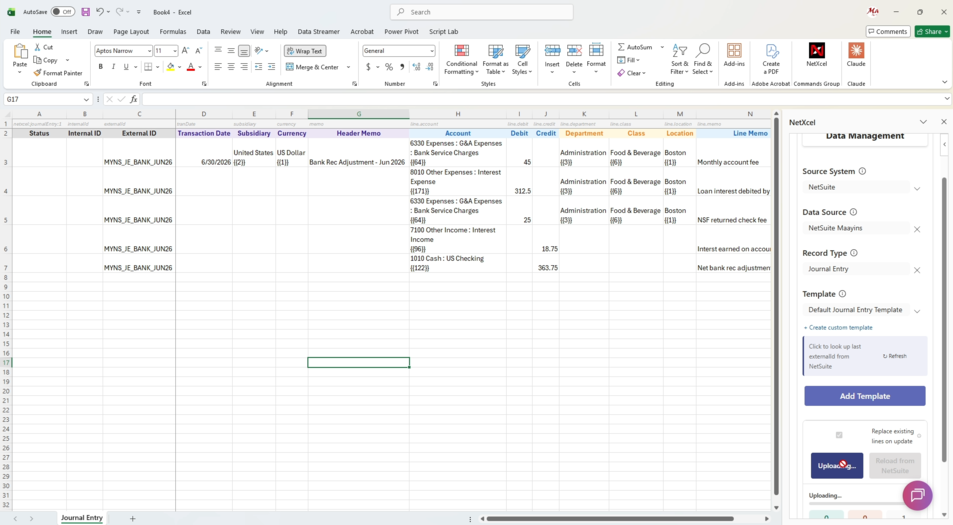
How Do You Enter the Journal Entry in Excel?
You enter the lines one at a time, field by field, right in the sheet. The picklist fields pull live from NetSuite, so there is no memorizing internal IDs. You just type and tab:
- Select USD for the currency.
- Enter the account number. Type 6330 and it resolves to the full Bank Service Charges account.
- Assign the segments: Administration for department, Food & Beverage for class, Boston for location.
- Enter the debit or credit amount.
- Work down each line the same way until all five are in.
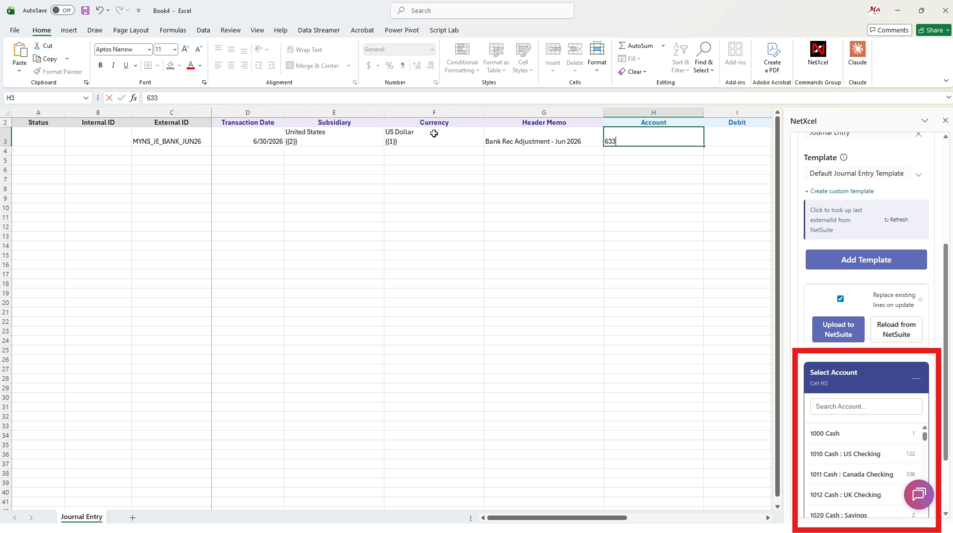
Because the values come from NetSuite, you only see accounts and segments that actually exist in your account. That removes the most common cause of CSV import errors before you ever click upload.
Still building CSVs every month end? See NetXcel post a journal entry from your own Excel sheet in a short live demo. Book a demo
What Happens When You Upload?
When all the lines are in, click upload. NetXcel:
- Validates that debits equal credits. An unbalanced entry is stopped in the sheet, not in NetSuite.
- Posts the journal entry straight to NetSuite.
- Writes the NetSuite internal ID back into the sheet, with the status showing Success.
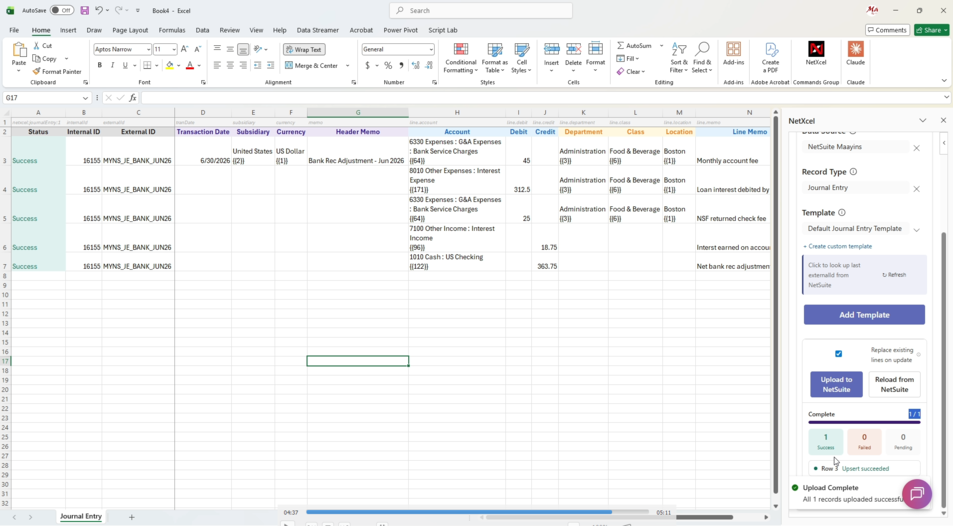
The internal ID in the sheet gives you an audit trail: anyone reviewing the close can go from the spreadsheet to the exact NetSuite transaction.
Confirming the Entry in NetSuite
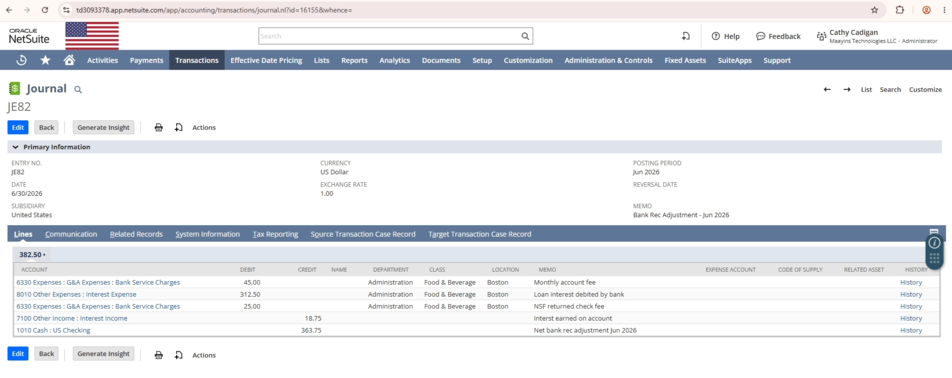
Open the journal entry list in NetSuite and the entry is there. All five lines posted, with department, class and location intact. The cash line, where those segments were left blank, posted exactly that way. No CSV files, no column mapping, no reimport.
It Works Both Directions
The same tool pulls live NetSuite data back into Excel: saved searches, reports, datasets and SuiteQL. The sheet you post from is also the sheet you report from. Same Excel, same workflow, wired directly into NetSuite.
For a monthly close, that is the difference between a multi-hour CSV exercise and a few minutes. A faster, safer close without the CSV shuffle.
Tips for a Cleaner Month-End Entry
- Reconcile first, post second. Agree the fees and interest to the bank statement before you build the entry.
- Use line memos. A short memo on each line (for example, "return check fee") makes the entry easy to review later.
- Keep one sheet per recurring entry. Reuse it each month and change only the amounts and date.
- Keep the sheet as support. With the internal ID written back, the spreadsheet doubles as your close documentation.
- Check segments on balance sheet lines. Decide whether lines like cash should carry department, class and location, and be consistent each month.
Frequently Asked Questions
Can I upload journal entries to NetSuite from Excel without a CSV import?
Yes. With NetXcel you enter the lines in Excel and post them straight to NetSuite. There is no CSV file to build and no column mapping to maintain.
Do I need to know NetSuite internal IDs?
No. Account, department, class and location fields are picklists pulled live from NetSuite. Type an account number such as 6330 and it resolves to the full account name.
What happens if the entry does not balance?
NetXcel validates that debits equal credits before posting, so an unbalanced entry is caught in the sheet instead of failing in NetSuite.
Can some lines leave department, class or location blank?
Yes. In the example, the cash and interest income lines had no segments, and they posted to NetSuite exactly that way.
How do I know the entry posted?
The NetSuite internal ID is written back into the sheet with a Success status. You can also open the journal entry list in NetSuite to see it.
Can I pull NetSuite data back into Excel too?
Yes. NetXcel also brings saved searches, reports, datasets and SuiteQL results into the same workbook.
Close Faster Without the CSV Shuffle
NetXcel connects Excel to NetSuite so your team can post journal entries and pull live reports from the spreadsheet they already use. Need help fitting it into your close process? Our team also offers NetSuite integration services and ongoing managed services.